Give furniture a useful visual context
Explore lifestyle scenes that show a styling direction around your product. Use a clear brief, preserve the item and review the image for its intended placement.
Preview allowances apply. Studio shows the available account and plan options.
Reviewed October 31, 2026 · Published by Furn
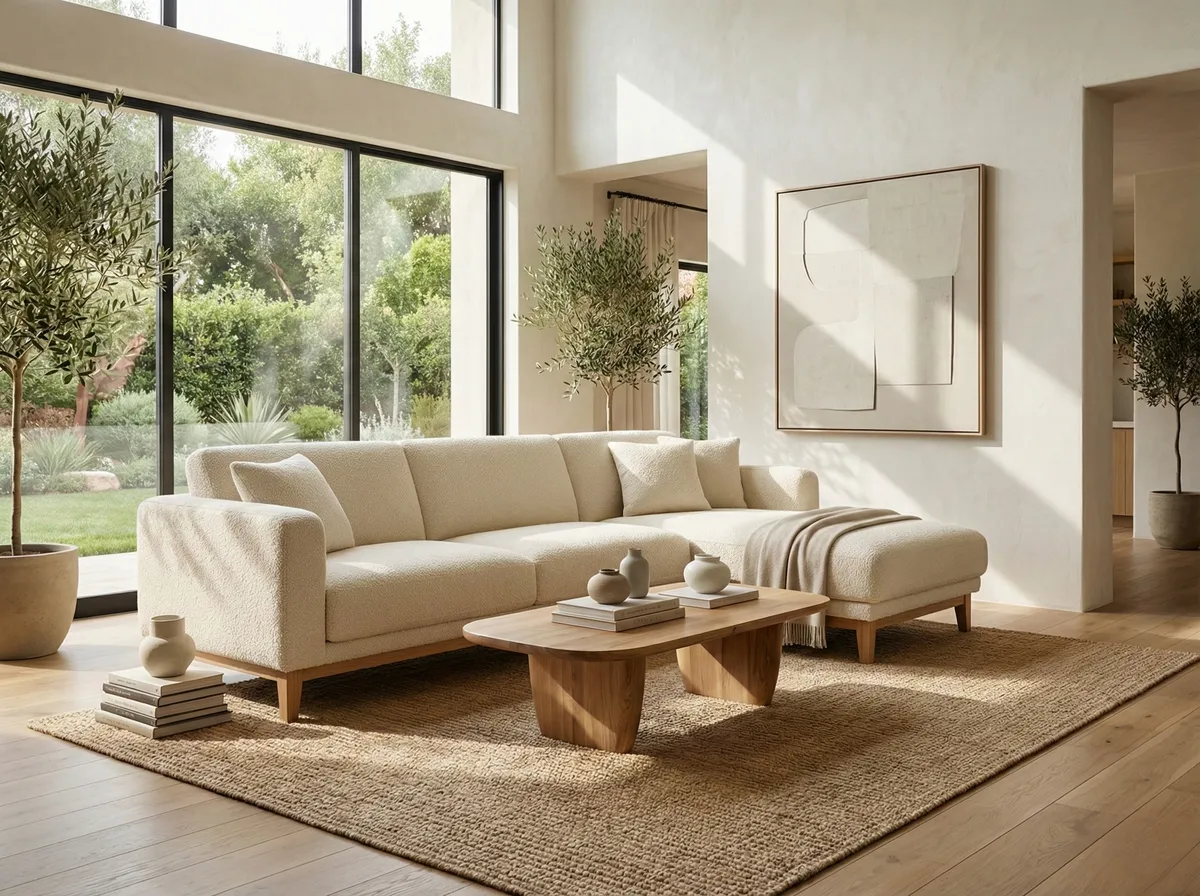
From product photo to reviewed creative
Step 1
Start with an approved product photo
Choose a clear view of the exact item and variant. Keep its dimensions, materials and source image available for review.
Step 2
Explore a room setting
Choose the available scene controls in Studio. Generation time and results vary; review the product’s shape, finish and details against the source.
Step 3
Prepare the approved output
Check the final file, crop and offer for its destination. Exporting an asset and publishing a campaign are separate steps.
Give each lifestyle view a job
Decide what the image should explain: a coordinated palette, a seating arrangement or a proposed reading corner. Keep isolated views and detail photos where they make the item easier to inspect. Lifestyle imagery is one part of a useful product presentation, not a universal replacement for other views.
Use the setting to support the product
Choose surrounding colors, lighting and props that leave the furniture identifiable. Avoid hiding important features or changing the product’s finish to suit the palette. Separate styling accessories from the actual included pieces in both the image presentation and the offer copy.
Plan the final composition
Record the intended destination, crop and text area before generating candidates. Inspect the product at the final display size, especially on a phone. A scene that reads clearly at full size may lose the hero item or a useful feature in a narrower placement.
Review style without inventing product facts
A scene can express a creative direction, but it cannot prove comfort, construction, material quality or a real customer experience. Compare the generated item with the source, and keep the claims in accompanying copy tied to approved product records.
Test a question you can measure
After accuracy review, compare one defined creative choice while keeping the offer and measurement scope clear. Record qualified actions and buyer outcomes separately from impressions or clicks. Furn does not promise a conversion multiplier, lower return rate or a winning visual style.
Put this workflow to work
Plan the background
Compare separation, contextual framing and prop obstruction.
Open resourceCheck image proportions
Plan crops and destination-specific exports without cutting off the product.
Open resourceDefine a creative test
Use an ad brief and worksheet to record the question and outcome.
Open resourceChoose your next step
See the creative workflow
Review how product imagery and campaign drafts fit together, including the checks before using them.
Compare plan allowances
Check creative credits, video allowances, account requirements and trial terms for your intended workflow.
Check channel availability
Confirm whether a destination uses exports, a pilot workflow or direct publishing before planning a launch.
Questions before you start
Do lifestyle images always outperform isolated product photos?
No universal outcome is established here. Different views answer different shopper questions. Choose the required views for the product and placement, then test a defined question using your own audience and measurement.
Can I create several settings for the same product?
Use the available Studio controls and plan allowances to explore candidates. Review each result for product identity and usefulness; producing more scenes does not by itself create a stronger product gallery.
Can one image serve every social and advertising placement?
Check each final crop, resolution and destination requirement. A master image may need different composition or export work, and some placements require additional information or a different type of product view.
Related solutions
Start with one product and a clear brief
Explore a creative direction in Studio, compare it with the real item, and check the plan and channel options for the work you want to finish.
The Starter campaign trial requires an account. Continued video generation requires Growth or above. Review current plans and billing terms.